


Club website
Edit the club website
Pages, blocks, draft and publishing: the essentials of the editor
The club website is edited in Plugin, with nothing to install. It is made of pages, and each page is made of blocks: a title, a text, photos, the prices, the committee, a calendar. Several blocks fill themselves with what Plugin already knows about the club.
The website is a paid option. It is enabled in the club settings, in the “Club website” block, with the “Enable the website” button. The “Website” tab then appears for people whose role gives this right; you sometimes need to log in again to see it.
Open the editor
In the menu, open “Website”, then “Edit the website”. The editor is in French. The website appears on the left, as visitors will see it. On the right, the “Mon site” panel groups the theme, the colours, the fonts, the menu pages and the club's contact details.
At the top, the drop-down list changes page, and the “Ordinateur” and “Mobile” buttons show the website on a large screen or on a phone.
Edit a block
Click a block on the page: its settings open on the right, in the “Contenu” tab. You can also click a title or a text and write it directly on the page.
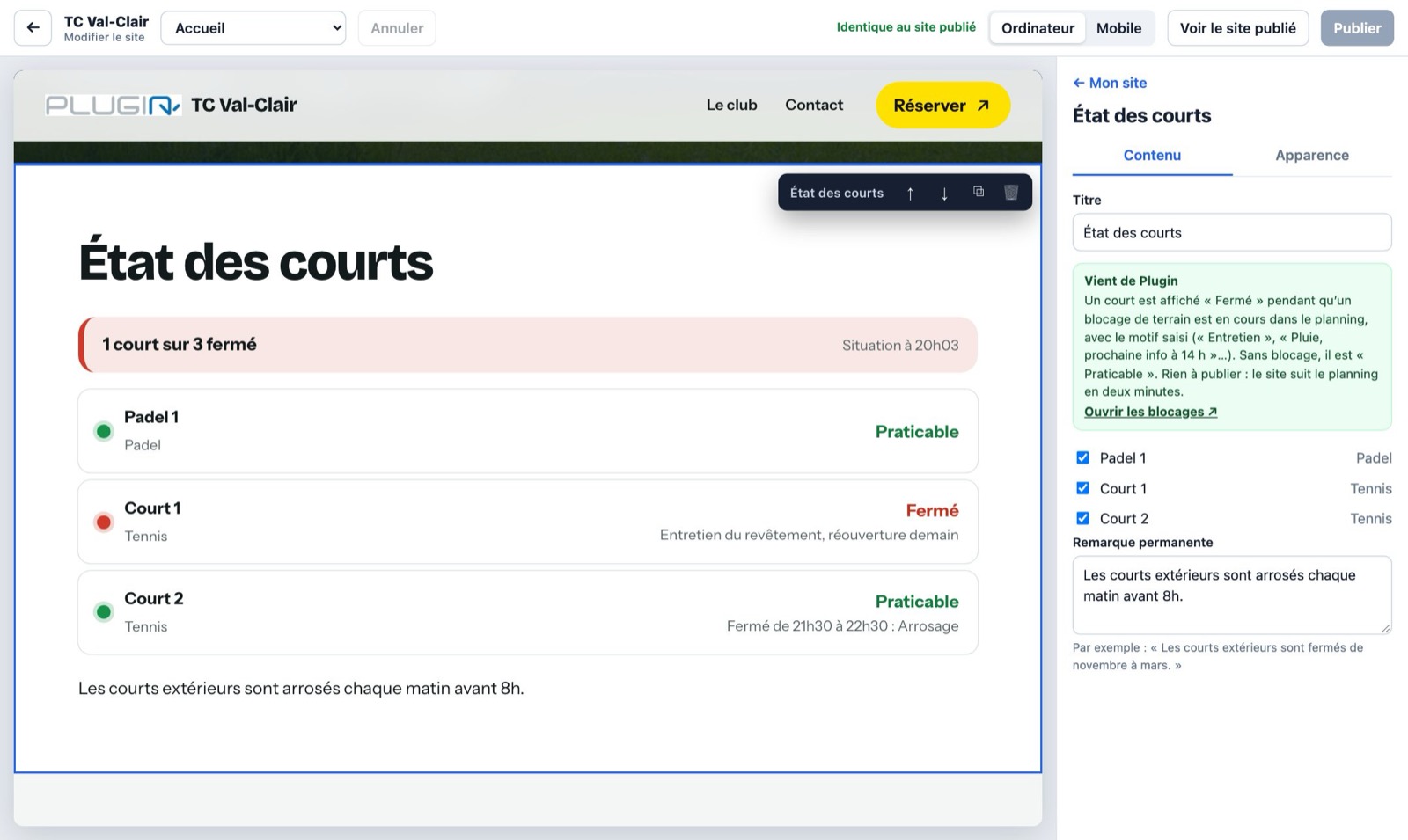
A selected block: its settings on the right, its buttons at the top of the block
The small bar at the top of the block moves it up or down, duplicates it or deletes it. The “Apparence” tab offers a background, a border and the space around the block.
A green “Vient de Plugin” box shows what is taken from Plugin: this information is corrected in Plugin, and on the website you only choose what is displayed.
Add a block
Between two blocks, click “+ Ajouter un bloc”, then choose from the list. The block arrives with sample content to replace.
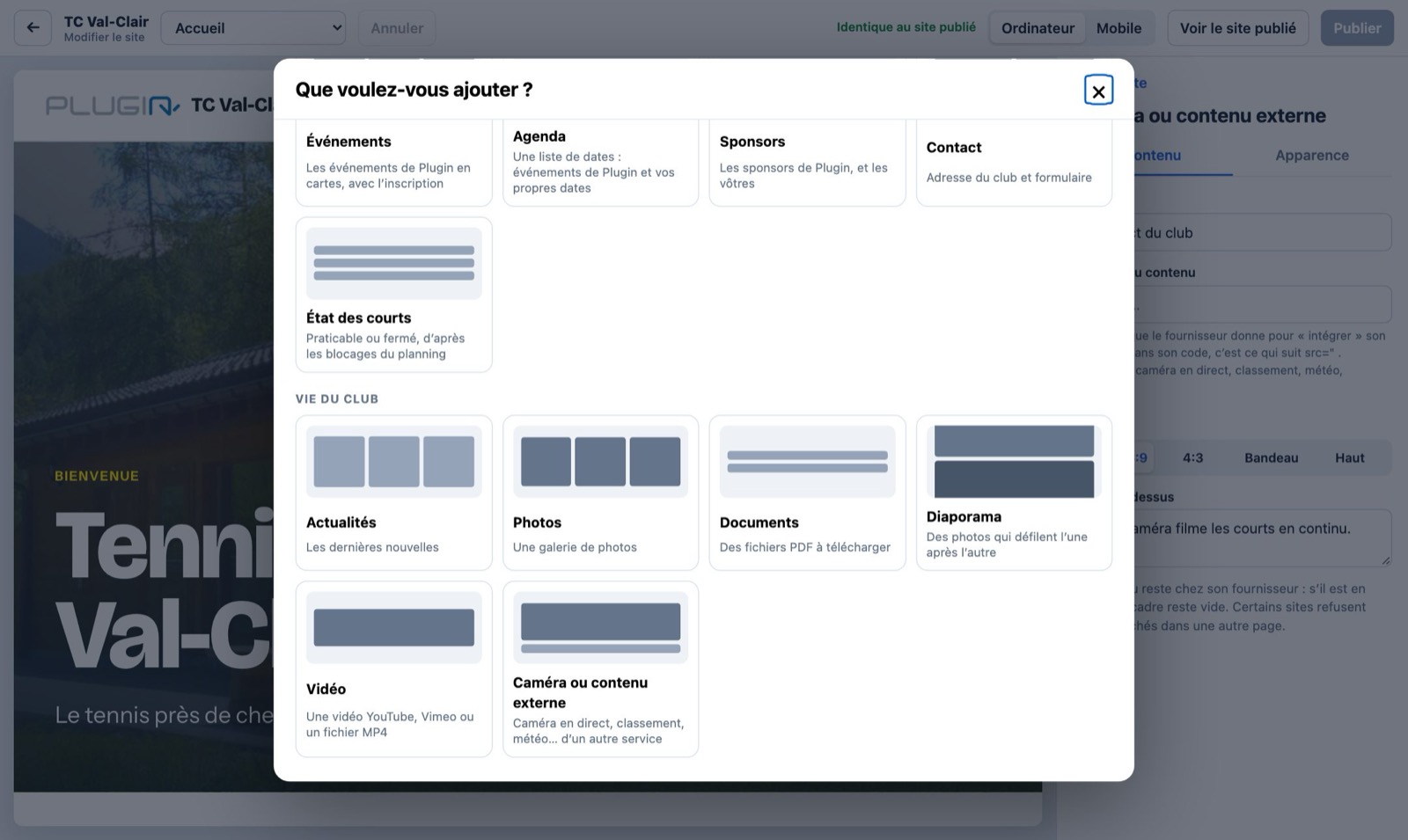
The list of blocks, sorted into three groups
| Group | Blocks |
|---|---|
| Présenter (Present) | Large welcome image, page title, text, text and photo, key figures, cards, history, banner with button |
| Remplis par Plugin (Filled by Plugin) | Plugin links (book, become a member, lessons), prices, courts, court status, committee, events, calendar, sponsors, contact |
| Vie du club (Club life) | News, photos, documents, slideshow, video, camera or external content |
For court status, the camera, video, the slideshow and fonts, see the article Court status, camera, video and slideshow on the club website.
Manage the menu pages
In the “Mon site” panel, the “Pages du menu” list lets you rename a page, move it up, hide it from the menu or delete it. The “+ Nouvelle page” button adds one. The ⇥ button places a page as a submenu of the page above it.
The first page is the home page: it is not in the menu, the logo leads to it.
Publish
Your changes are saved automatically as a draft: visitors do not see them yet. When everything is right, click “Publier”.
- “Annuler” undoes one change.
- “Voir le site publié” opens the website as the public sees it.
- At the bottom of the “Mon site” panel, “Revenir à une version publiée…” takes an earlier version back as a draft, and “Abandonner mes modifications non publiées” deletes the draft.
Messages sent through the website's contact form reach the club by e-mail and can be found under “Website”, then “Messages received”.
Plugin.ch Tutorial — Club website